Step one
Getting in
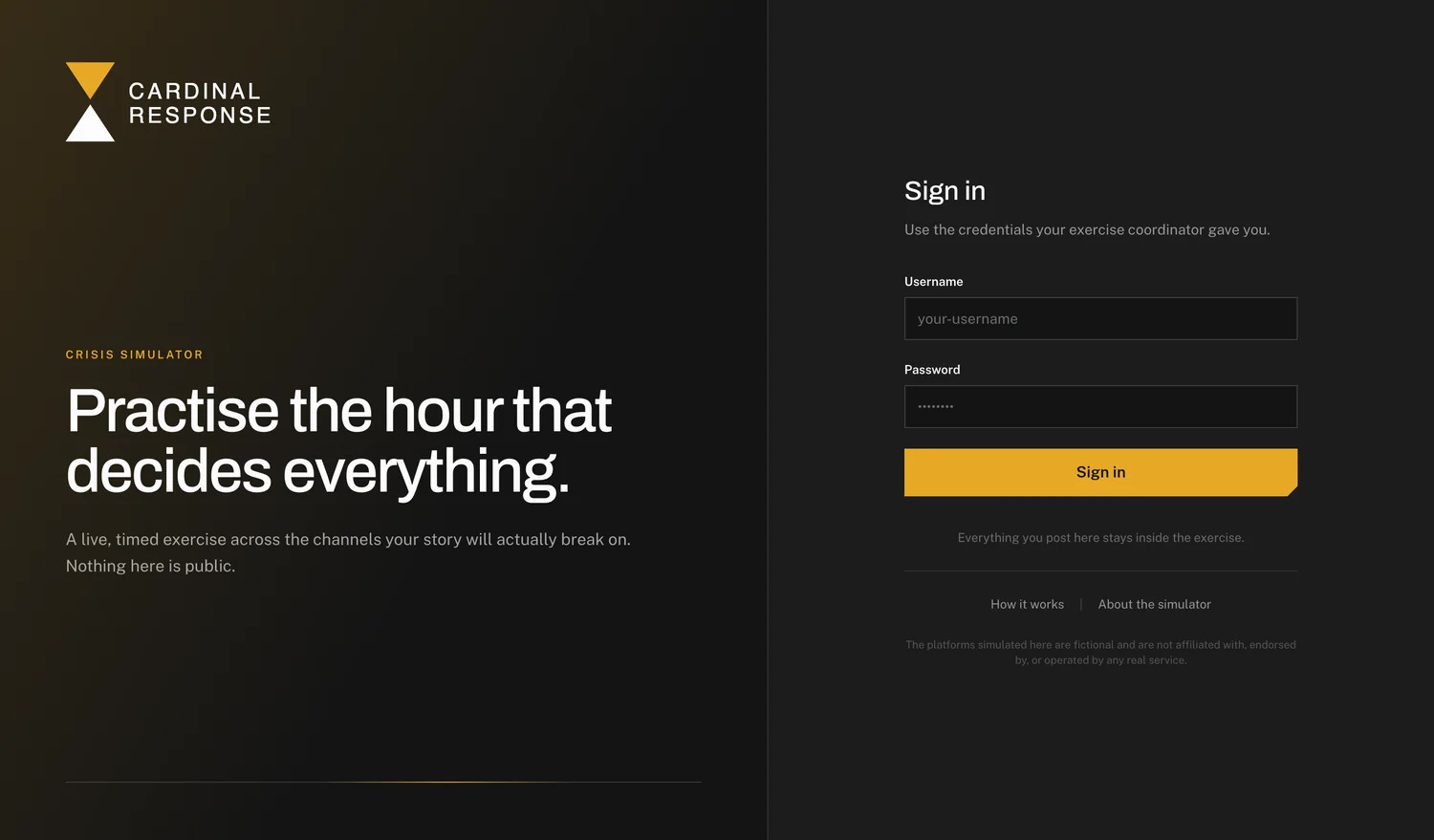
All you'll need is your username and password.
Use the login your coordinator gave you
Go to the sign-in page and enter the username and password issued for the exercise. They are exercise-specific credentials — not your work account. If you've done an exercise with the simulator before, it may or may not be the same username and password.
If you have not been given a login, or it does not work, contact whoever invited you. Nobody can reset it from inside the exercise.
Any device, any browser
A laptop gives you every feed at once and is the better experience if you have the choice. A phone works properly too — the layout changes to one feed at a time with tabs along the bottom.
Nothing needs to be installed and nothing needs to be downloaded.
Finding your exercise
If you have been added to one exercise you will be taken straight into it. If you have more than one, you will see a list — open the one marked live.
Step two
Reading the screen
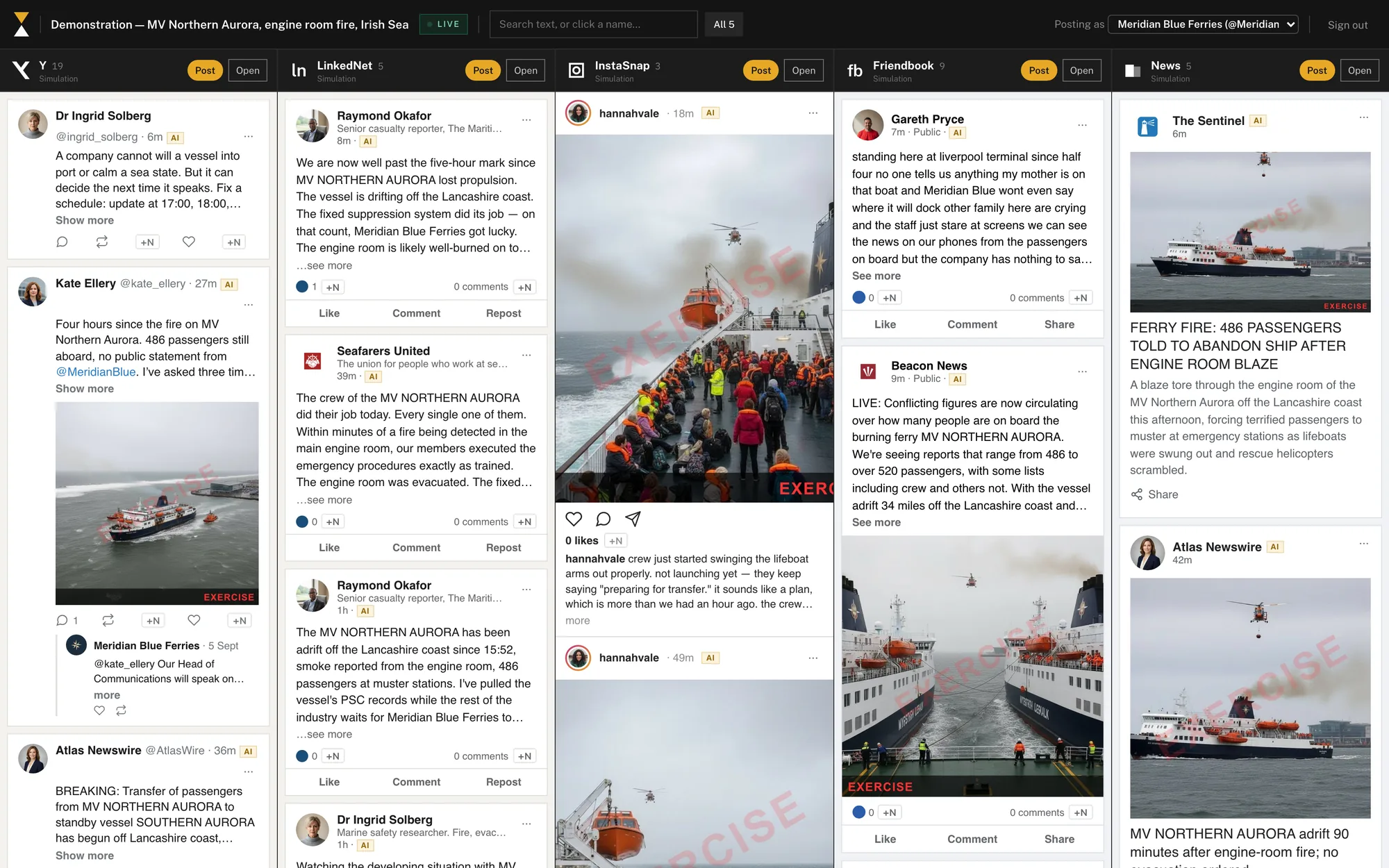
The layout is deliberately close to the real platforms, so you should not have to learn anything.
The feeds
On a laptop the platforms sit side by side in columns — Y, LinkedNet, InstaSnap, Friendbook and News. Each column is its own feed and scrolls on its own. On a phone you get one feed at a time, chosen from the tabs at the bottom, plus an “All” tab that mixes everything together in order. NOTE: your exercise may not include all of the platforms. If you only see some of the columns, don't worry — that's how your exercise has been set up.
These are simulated platforms with invented names. They behave like the real ones, but nothing you post here reaches any real service.
New posts, and finding things again
A gold badge appears when new content arrives; new posts get a brief gold wash so you can see what has just landed. Each column header shows how many posts that platform holds in total.
The search box in the header works two ways, and a small tag on it says which is active. Type, and it searches the words of every post in the exercise — including posts that have scrolled off or have not loaded yet — which is useful when a story has run for an hour and you need the original post again. Click a name instead, and the box shows only that person’s posts and any post that mentions them. The ✕ on the tag, or Backspace, clears it.

Opening a single platform on its ownUseful on a small screen, or when one channel is running hot
Each column header has an “Open” link that gives that platform the whole window, in its own layout. Use the back button, or the simulator’s own navigation, to return to the combined view.
Reading a news article in fullNews items open as a complete web page
Stories in the News feed are not just headlines. Click the headline or the picture and the full article opens over the feed, on a mocked-up news site, the way it would look if a colleague sent you the link. It is worth reading them properly — the detail in the coverage is usually the thing your response needs to address. An article that someone has shared on Y or LinkedNet opens the same way from its card.
Step three
Taking part
Respond as you would on the day. That is the whole exercise.
Posting
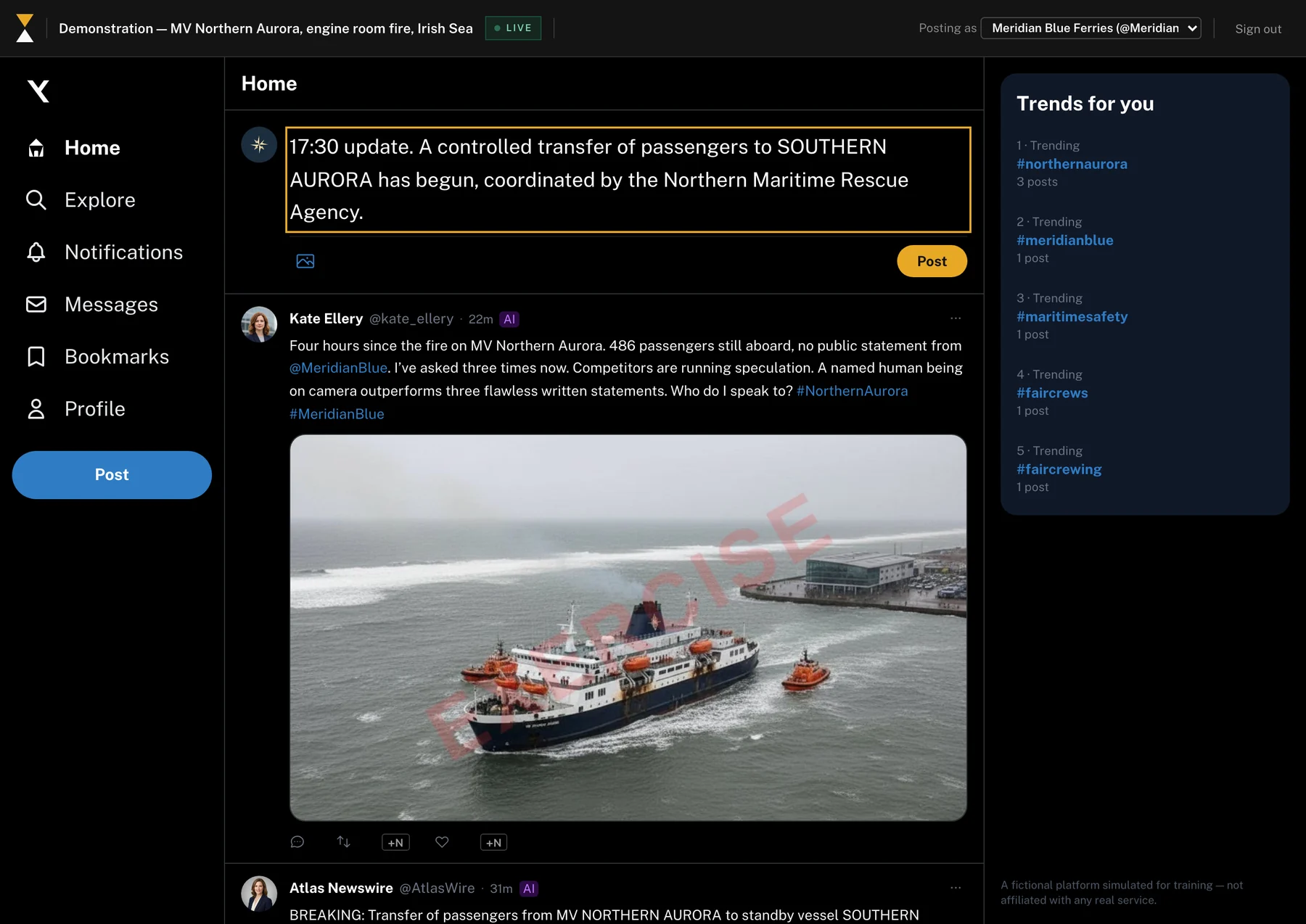
Use the post box at the top of a feed, or the Post button on a phone. Choose the platform, write, and send. Your post appears in the feed immediately and the characters in the exercise can read it — so expect an answer.
Replying, liking, reposting
Every post has the actions you would expect. Replying threads your response under the original, which is usually better than a fresh post when you are answering someone directly. A repost can be plain, or a quote with your own words on top. A busy thread shows the first few replies with a link for the rest.
Sharing an article
Every news story has a Share button. Choose Share on Y or Share on LinkedNet, add a comment if you want one, and the article appears in that feed as a card with your words above it.
Images
You can attach an image to a post. On InstaSnap the picture is the post, so you will be asked to crop it to portrait before it goes up. Click any picture in a feed to see it full size.
Who you are posting as
You are posting as the account the exercise assigned you — often the company account or a named spokesperson. It is shown in the header. If you have been given more than one persona, a switcher appears there and you can change which one you are speaking as before you post.
Step four
Email and the telephone
Not every exercise uses these. If yours does, your coordinator will tell you beforehand.
If you gave your coordinator an email address for the exercise, journalists write to it asking for comment, and you reply from your normal inbox. Threads work the way email threads work — reply, and they come back to you on it. Every exercise email is marked: the subject starts with EXERCISE and the body carries a red EXERCISE banner top and bottom, so it can never be mistaken for a real approach.
If your organisation’s own press-office address is being used, one short administrative message arrives first asking whoever reads that inbox to confirm it. Reply CONFIRM or click the link; until then nothing can be sent there.
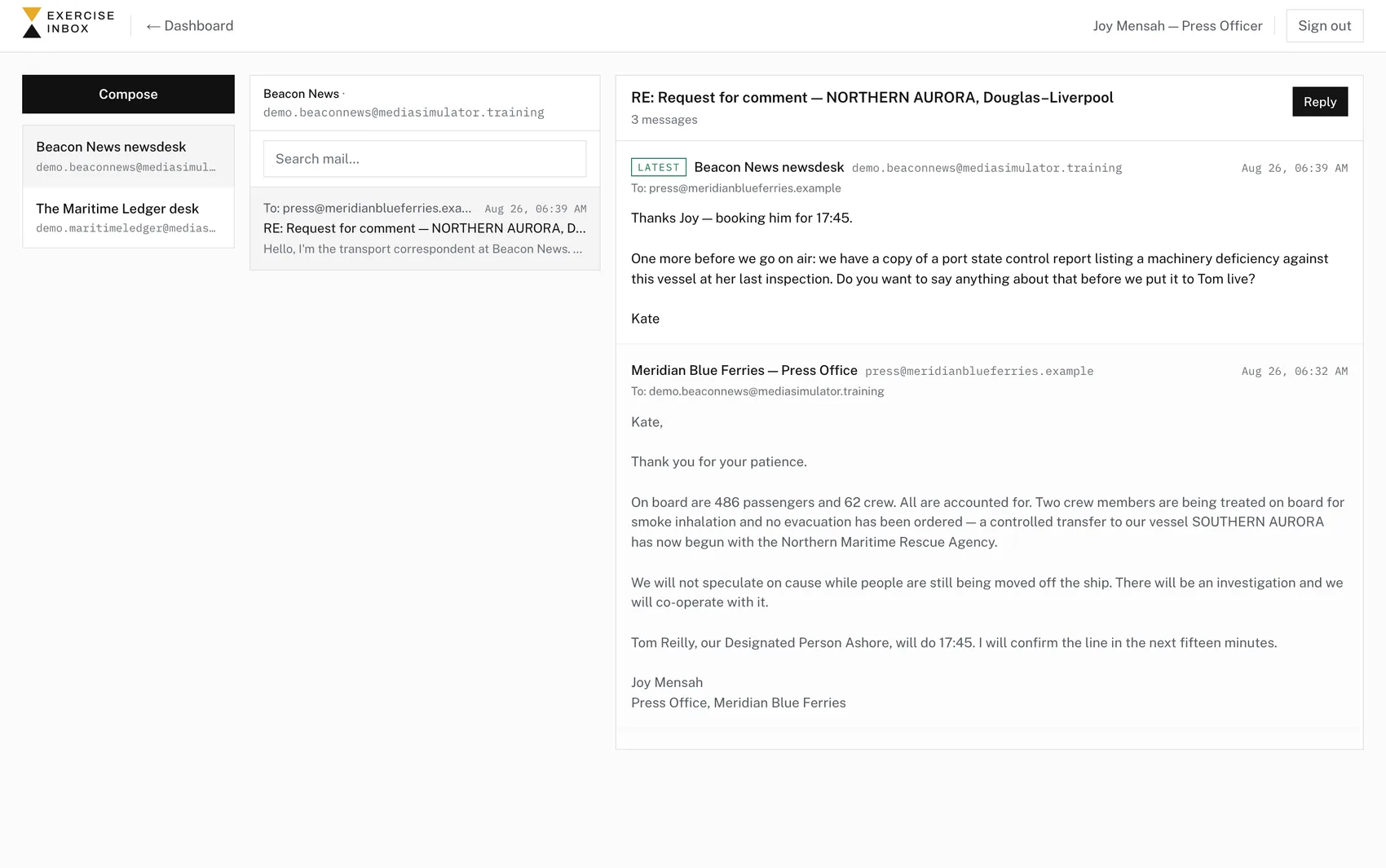
Role-players operating a news desk have an Inbox inside the simulator instead, reached from the header. Either way, treat anything that arrives as a genuine request for comment. How long you take to answer is part of what gets measured.
Telephone calls
A reporter may telephone you during the exercise. You will be asked to confirm beforehand that you are happy to receive calls on the number you have given, and you can decline — nobody is called without agreeing to it first.
Answer it as you would answer a reporter. Calls may be recorded and transcribed for the debrief, and what you say on the phone can end up quoted in the coverage afterwards. That is not a trick; it is exactly what happens.
Before you start
Four ground rules
Nothing here is real, and nothing here is public
Every platform, outlet, journalist and member of the public in this exercise is invented. Nothing you write is published anywhere outside the simulator, and no real service ever sees it.
Nothing real should go in, either
Do not paste in confidential company information, personal data about real people, or any password. If a scenario detail sounds close to something real, treat it as coincidence and stay inside the exercise.
Stay in role, and play it straight
The exercise is only worth the time if you respond as you actually would. Guessing what the trainer wants to hear teaches you nothing. Neither does treating it as a joke — although a bad decision made here costs nothing, which is the entire point of making it here.
You cannot break it
There is no wrong button. Post the thing, send the reply, take the call. If something looks stuck, the fix is almost always to reload the page — the simulator is sometimes updated while an exercise is running, and an open page can go quiet until it is reloaded.
If something goes wrong
Fixes, in order
Try these before flagging it — they cover almost everything.
The feed is empty, or has stopped updating
Reload the page. If it is still empty, check with your coordinator that the exercise has actually been started — a paused or not-yet-live exercise shows nothing.
I have been signed out
Sign in again with the same credentials. Nothing you posted is lost, and you rejoin the exercise where it now is.
My login does not work
Contact whoever invited you. Passwords cannot be reset from inside the exercise, and there is no self-service reset by design.
I cannot post, or the post box is missing
Some roles are observers and can watch but not post. If you should be able to post, tell your coordinator — it is an easy change on their side.
For trainers and role-players
If you are running it, not taking part
Trainers get a briefing before the exercise. This is the outline.
The control roomPace, hold, release, inject, advance
Each exercise runs as a series of stages, each with its own narrative, teaching points and queue of prepared content that releases at a pace you set. Anything queued can be held, edited or published early, and you can advance to the next stage whenever the team is ready.
If the team goes somewhere the scenario did not anticipate, type what you want to happen into the injection box and the exercise follows them.
Approving generated contentNothing has to reach the feed unattended
Automatic replies from characters can be set to require approval. Pending items appear at the top of the run panel where you can approve, edit or discard each one.
Email and voice consolesMailboxes, consent, calls and transcripts
The email console shows every thread, holds AI-drafted replies for approval, and has the kill switch. The voice console holds participant phone numbers and consent status, lets you place or test calls, and shows transcripts and recordings afterwards. Role-players operating a mailbox by hand use the in-app Inbox and send from the outlet address.
Analytics and the reportLive during the exercise, exportable afterwards
The analytics dashboard updates while the exercise runs — response times, participation, platform coverage and an activity timeline. The report exports to Word and CSV for the debrief pack.
Still stuck
Speak to your exercise coordinator first — they are in the room and they can fix most things in seconds. If you cannot reach them, write to us.